UR44C Mixer manual
A practical guide to connecting the interface, setting up input channels, shaping the mix and playing backing tracks.
The app sends audio through its own mixer path. For live inputs, the signal must be opened by Android over USB and routed through the app to the UR44C outputs. Direct monitoring on the interface can sound different because it bypasses app processing.
GETTING STARTED
- Connect a supported UR44C interface to an Android device using a data-capable USB OTG connection.
- Power on the interface, open UR44C Mixer and grant USB access when Android asks.
- Select the required input mode (mono or stereo pair) and confirm signal on the channel meter.
- Connect headphones or speakers to the UR44C output you intend to use.
CHANNELS
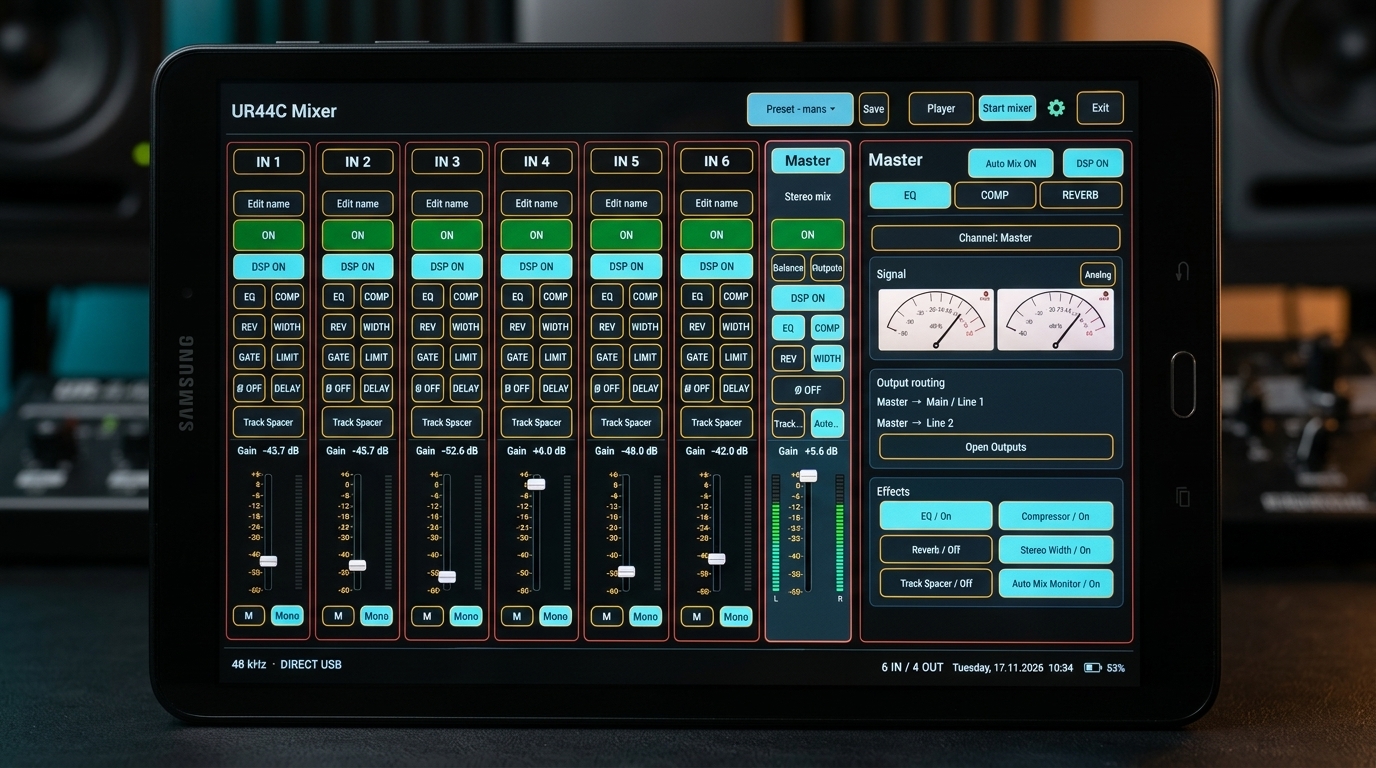
Each input strip has its own fader, mute, mono/stereo mode, meter and effect controls. A stereo pair is shown as one linked channel with left and right metering.
EFFECTS
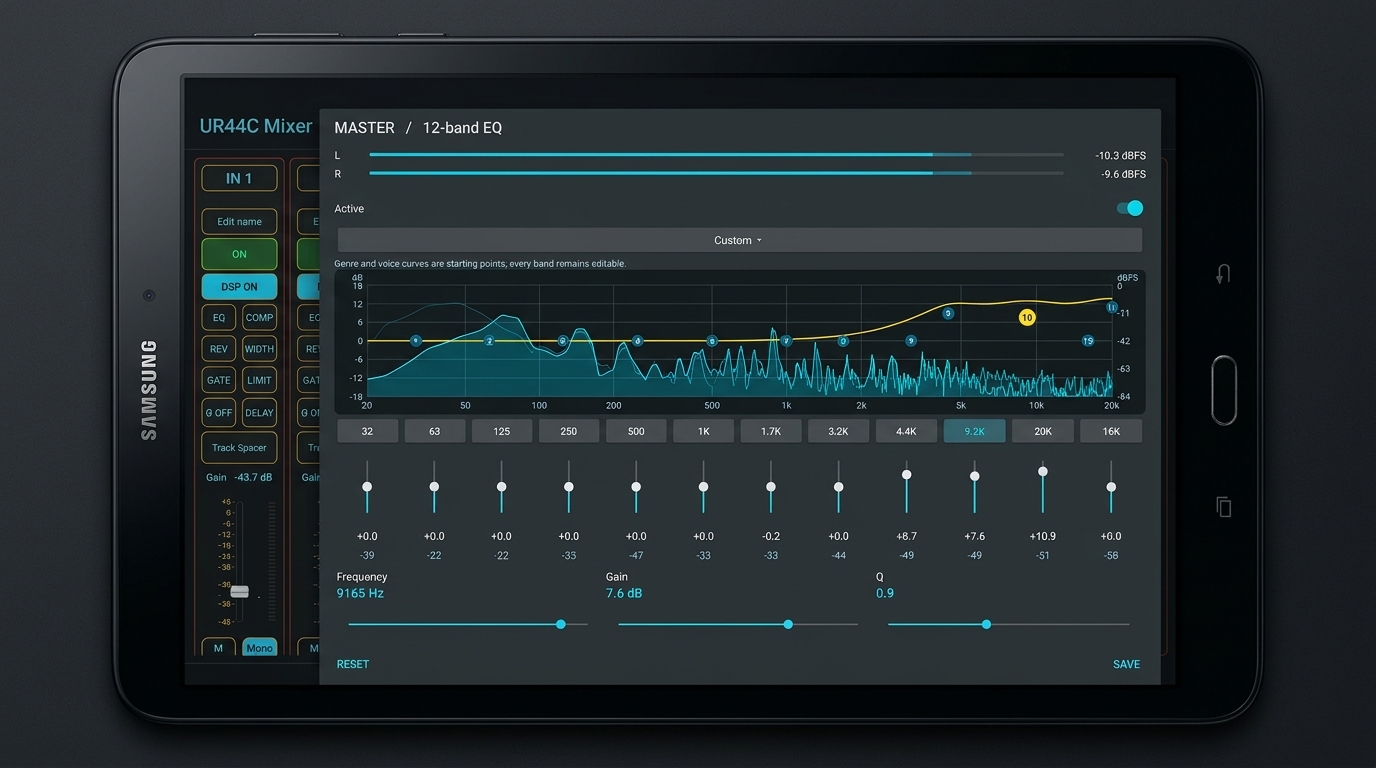
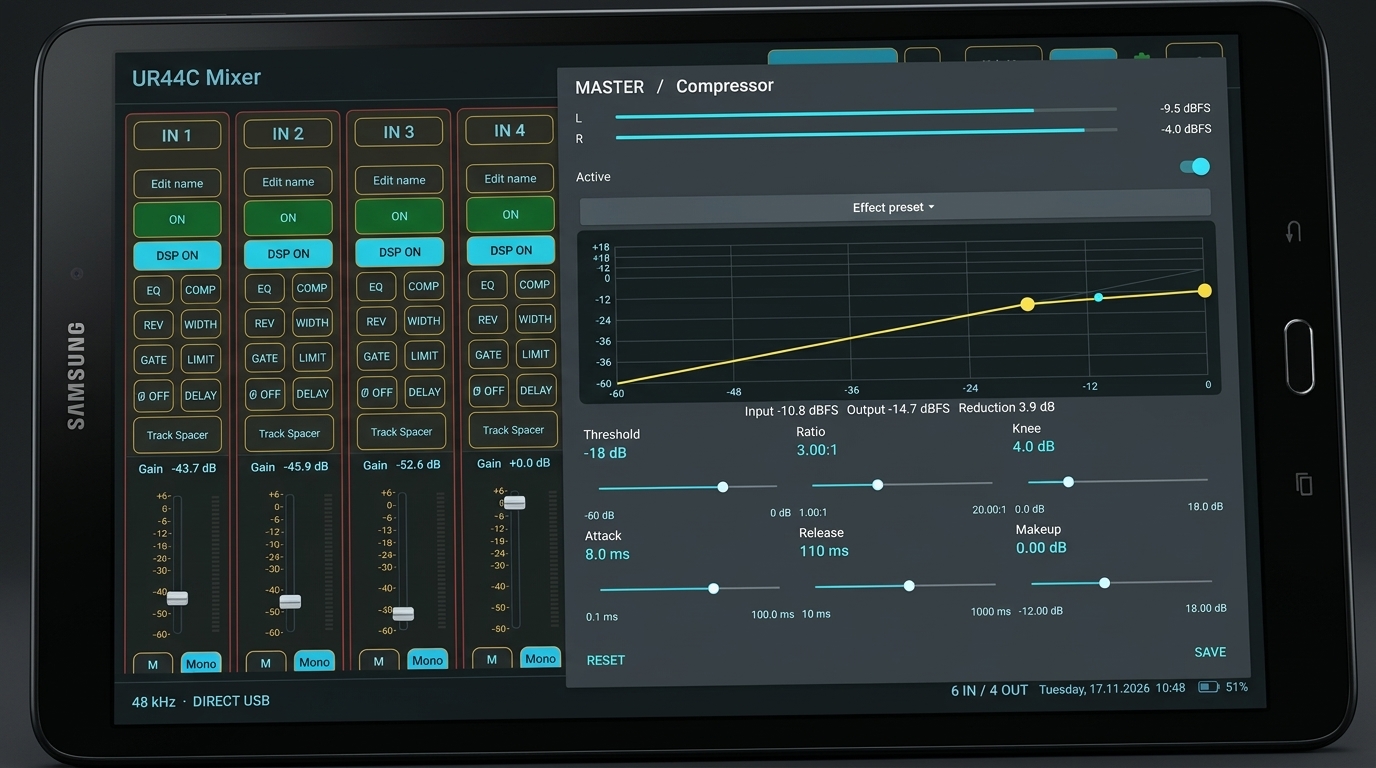
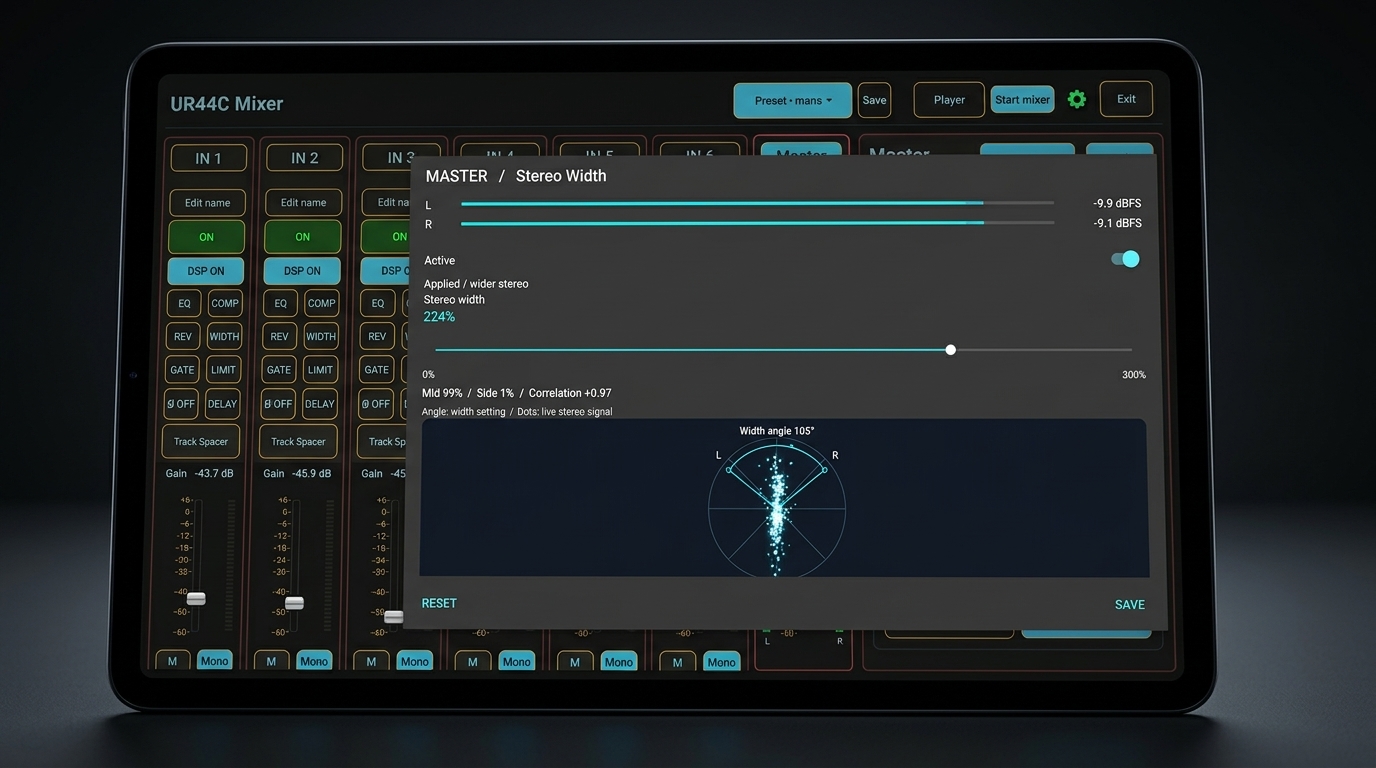
Open EQ, COMP, REV, WIDTH, GATE, LIMIT, DELAY or Track Spacer from the relevant channel. Use the effect window to adjust its controls and bypass it when needed. Master processing is applied to the final mix.
PLAYER
Choose audio files or a folder, open Track List, select a song, and use Previous, Play/Pause, Stop and Next. Player audio is routed through the mixer to the selected UR44C outputs.
PROFILES
Use the profile controls to save and recall mixer settings. Keep a backup of important profiles before major changes.
TROUBLESHOOTING
If audio does not start, check Android USB permission, the selected interface, the channel mute/fader, master mute/fader, output routing and headphone/speaker connection. If the interface disconnects, reconnect USB and reopen the mixer if Android does not restore the USB stream.
Interface reference
When something is not working
The app does not see the UR44C
Confirm the OTG/USB host connection, power on the interface, then unplug and reconnect the USB cable. If Android asks for USB permission, choose the mixer app and allow it. Some tablets close the audio connection after USB is interrupted; reopen the app if Android does not restore it.
An input meter moves, but I hear silence
Check that the channel and master are unmuted, raise both faders, and confirm the output route and physical output pair. Headphones use the UR44C PHONES output; line outputs are separate sockets.
The sound crackles or breaks up
Reduce the input gain if the signal is clipping. Turn off processing temporarily to isolate the cause, then re-enable one effect at a time. If crackling continues, select a larger USB buffer in General Settings and close other audio apps.
I hear a delay while monitoring
Use the app’s low-latency audio mode and the smallest stable buffer available on the tablet. Higher buffer values can reduce dropouts but add monitoring delay. Direct monitoring on the UR44C is separate from monitoring through the app.
The effect changes the sound when I bypass it
Use the effect’s Reset control to return its parameters to neutral, then compare bypass on and off at matched loudness. A bypassed effect should not alter the signal; if it does, disable other processing and check the channel routing.